API Documentation
Complete reference for the doc2jats pipeline service and OJS plugin integration.
Overview
doc2jats is a hosted conversion pipeline that transforms DOCX (and ODT, DOC) documents into JATS XML following the NLM/SPS 1.9 standard. It provides REST endpoints consumed directly from a browser form or programmatically from the OJS plugin.
The service is powered by open-source technology developed by EDITUM — Servicio de Publicaciones de la Universidad de Murcia (Spain) — and operated by Paideia Publishing Services LLC. The underlying components are distributed under GPL-2.0:
| Component | License |
|---|---|
| docxtojats-pipeline (EDITUM) | GPL-2.0 |
| JATSWizard-d2j (OJS plugin, Paideia) | GPL-2.0 |
| docxtojats core (EDITUM) | GPL-2.0 |
DOCX → JATS XML
Full structural conversion with metadata, references and inline citations.
AutoMark 2000™
Automatic citation detection using APA, AMA or Vancouver style.
Image extraction
Embedded images extracted from DOCX and bundled in the output ZIP.
OJS Plugin
Native integration with OJS 3.3 and 3.4 copyediting workflow via JATSWizard.
Base URL
https://doc2jats.comAll endpoints are relative to this base. The service accepts multipart/form-data requests and returns binary file responses (ZIP or PDF).
Accept: application/json to receive binary file responses directly. Without it, the server returns an HTML page with a download link.Authentication & security
The service requires an X-Api-Key header for all POST requests. The OJS plugin sends this header automatically when configured in plugin settings.
| Response | Condition |
|---|---|
| 401 missing_key | No X-Api-Key header present |
| 401 invalid_key | Key does not match any active account |
| 402 insufficient_credits | Account has zero credits remaining |
Infrastructure security
| Layer | Measure | Status |
|---|---|---|
| Cloudflare | SSL/TLS Full mode | ✓ active |
| Cloudflare WAF | Custom rules blocking scanner paths | ✓ active |
| Nginx | Reverse proxy — GET to /doc/* redirects to home | ✓ active |
| Docker | Xdebug disabled, APP_ENV=prod | ✓ active |
| API key enforcement | Per-client key + credit deduction via Odoo | ✓ active |
| Rate limiting | 10 requests / 10 seconds per IP on /doc/ | ✓ active |
How Images Work
Images embedded in the source DOCX are automatically extracted during conversion and included in the output ZIP alongside article.xml. They are referenced in the JATS XML with relative paths.
output.zip
├── article.xml
└── media/
    ├── image1.png
└── image2.jpg?op=img&img=media/image1.png. They are temporary until the editor saves the galley.GET /doc/
{ "success": true, "message": "It just works!" }curl https://doc2jats.com/doc/POST /doc/tojats
Core conversion endpoint. Returns a ZIP with article.xml and all extracted images.
Request — multipart/form-data
| Field | Type | Description | |
|---|---|---|---|
| doc_to_jats_form[inputFile] | file | required | Accepted: .docx .doc .odt |
| doc_to_jats_form[front-file] | file | optional | Pre-built <front> XML section |
| doc_to_jats_form[bibliography-file] | file | optional | References for AutoMark: .json .ref .txt |
| doc_to_jats_form[citation-style] | string | optional | Activates AutoMark: apa ama vancouver |
| doc_to_jats_form[normalize] | checkbox | optional | Normalize DOCX via LibreOffice first. Send 1 |
| doc_to_jats_form[set-bibliography-mixed-citations] | checkbox | optional | Force SciELO-compatible <mixed-citation> |
| doc_to_jats_form[set-figures-titles] | checkbox | optional | Auto-detect figure titles |
| doc_to_jats_form[set-tables-titles] | checkbox | optional | Auto-detect table titles |
| doc_to_jats_form[replace-titles-with-references] | checkbox | optional | Replace title paragraphs with <xref> references |
| doc_to_jats_form[remove-sections] | string | optional | Section IDs to remove. Example: abstract references |
ZIP with article.xml, article.json, and images.
curl -s -o result.zip \
-H "Accept: application/json" \
-H "X-Api-Key: YOUR_KEY" \
-F "doc_to_jats_form[inputFile]=@article.docx" \
-F "doc_to_jats_form[citation-style]=apa" \
https://doc2jats.com/doc/tojatsPOST /doc/normalizer
Normalizes a document via LibreOffice to strip corrupt styles and standardize OOXML structure.
| Field | Type | Description | |
|---|---|---|---|
| inputFile | file | required | Accepted: .docx .doc .odt |
Cleaned DOCX file.
POST /doc/anonymizer
Converts to PDF and strips all author and institution metadata for double-blind peer review.
| Field | Type | Description | |
|---|---|---|---|
| inputFile | file | required | Accepted: .docx .doc .odt .pdf |
PDF with authorship metadata removed.
POST /doc/jatsPublisher
Renders a JATS XML document to HTML and PDF using Saxon XSLT. Returns a ZIP with all output files.
article.xml at root plus images. Sending the XML file alone will fail.| Field | Type | Description | |
|---|---|---|---|
| upload_zip_file_form[inputFile] | file | required | ZIP with article.xml at root + images. .zip |
ZIP containing: article.html, article.pdf, style.css
# Step 1: DOCX → JATS
curl -s -o jats.zip -H "Accept: application/json" \
-F "doc_to_jats_form[inputFile]=@article.docx" \
https://doc2jats.com/doc/tojats
# Step 2: JATS → HTML + PDF
curl -s -o publication.zip -H "Accept: application/json" \
-F "upload_zip_file_form[inputFile]=@jats.zip;type=application/zip" \
https://doc2jats.com/doc/jatsPublisherOJS Plugin — Overview
The JATSWizard-d2j plugin integrates doc2jats into the OJS copyediting workflow. It adds action buttons to DOCX files at the production stage, launching a 4-step guided conversion wizard directly in the browser.
| Branch | OJS version | Status |
|---|---|---|
| main | OJS 3.3.x | ✓ stable |
| ojs-3.4 | OJS 3.4.0.x | ✓ current |
Plugin — Installation
| OJS version | Download |
|---|---|
| OJS 3.4.x | JATSWizard-ojs34.tar.gz |
| OJS 3.3.x | JATSWizard.tar.gz |
- Download the package matching your OJS version from the table above.
- Extract into
plugins/generic/jatsWizard/inside your OJS installation directory. - In OJS, go to Settings → Website → Plugins → Generic Plugins and enable Asistente de conversión DocX a XML-JATS.
- Click Settings and enter the Pipeline URL (
https://doc2jats.com) and your API key.
Language Support v1.4.1
Starting from version 1.4.1, the plugin wizard interface is fully internationalized. The language used in the wizard follows the active locale set in OJS automatically — no configuration needed.
Supported locales:
es — Español en — English pt_BR — Português (Brasil)
All wizard UI strings — step labels, menu options, error messages, form labels — are translated in all three locales. When OJS is set to a locale not yet supported, the interface falls back to English.
locale/en/locale.po, locale/es/locale.po, and locale/pt_BR/locale.po in the plugin repository. Pull requests for additional languages are welcome.Plugin — Screenshots
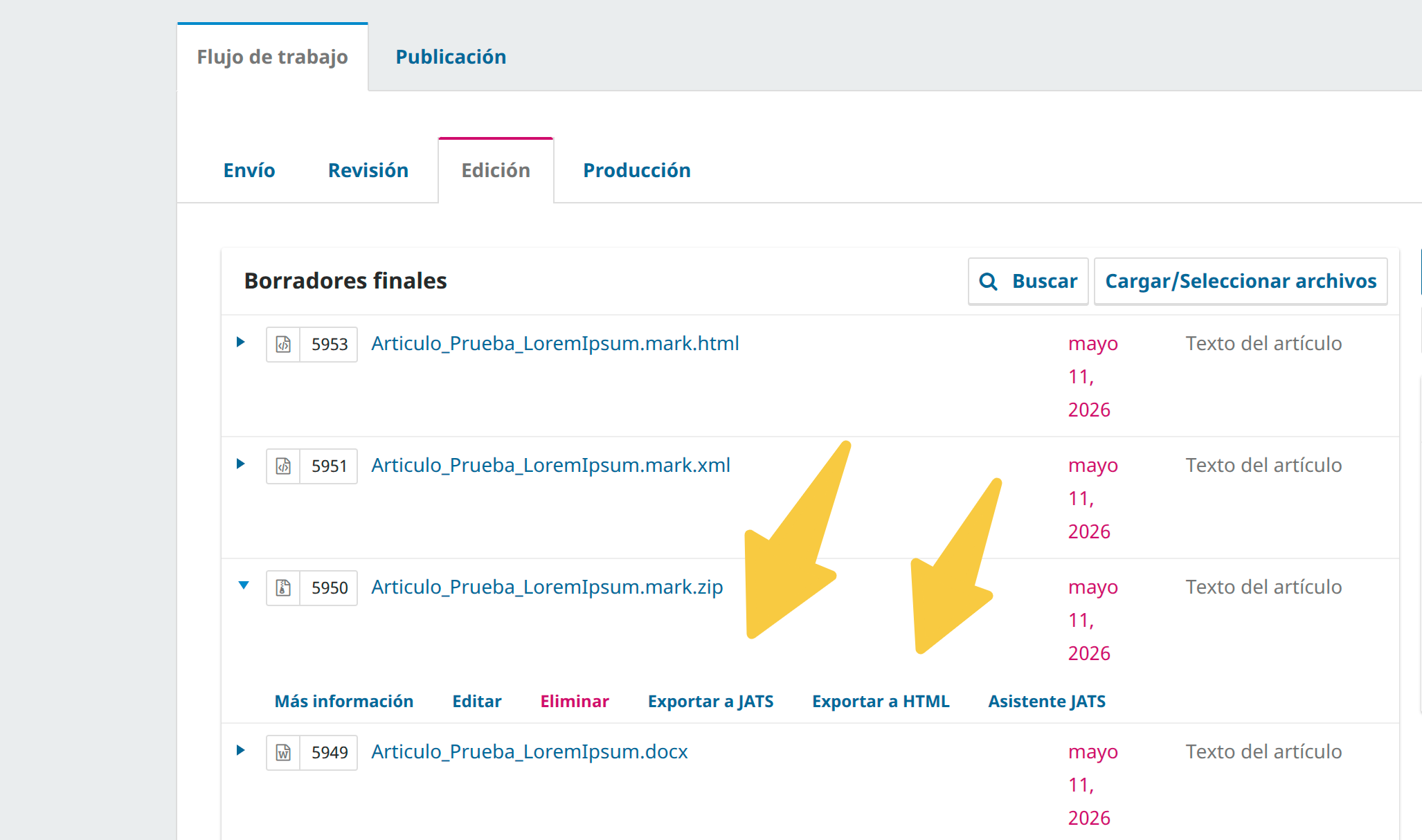
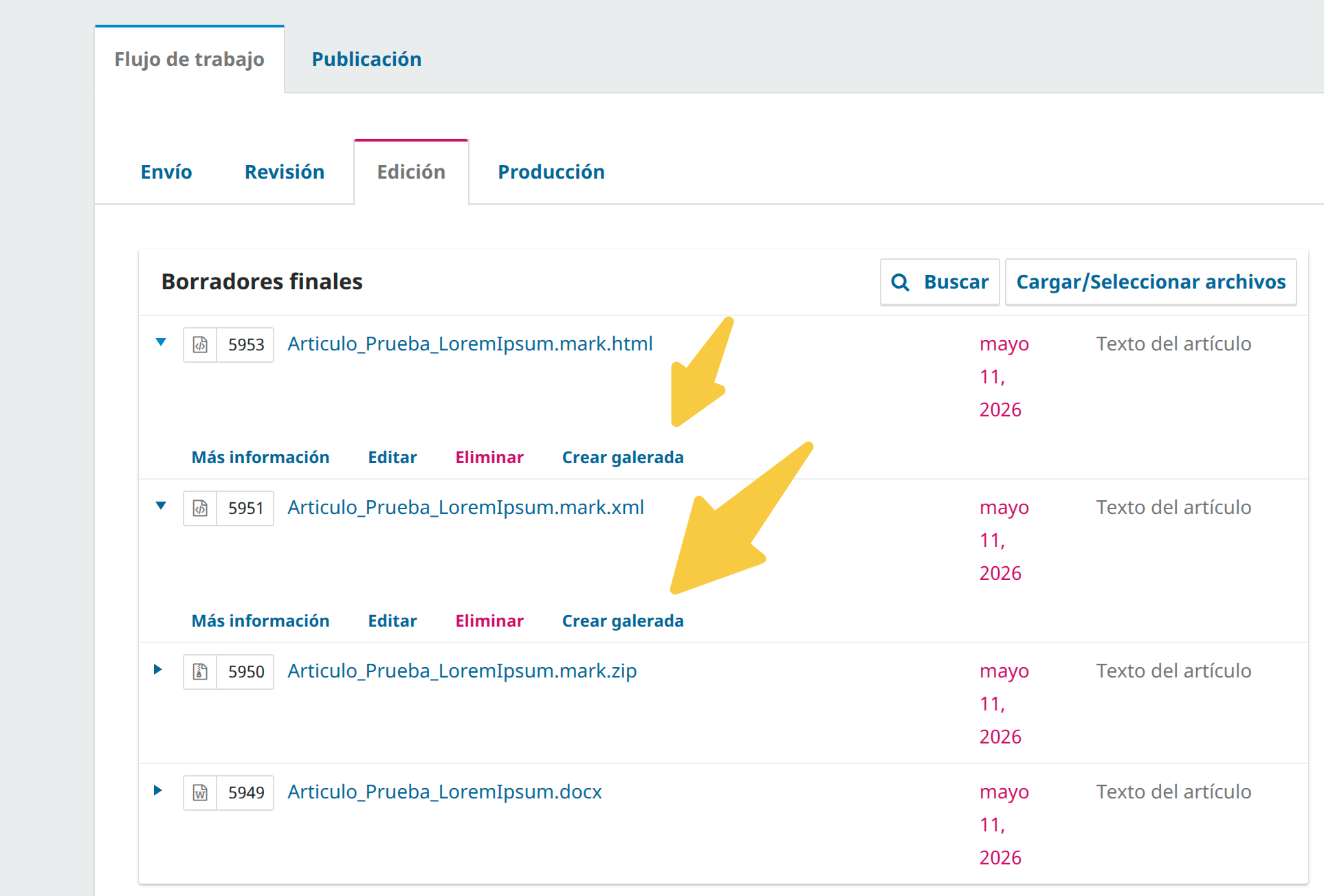
.mark.zip is saved, the editor can export it to a JATS XML file or generate an HTML version. Both actions create a new file in the production stage with a Crear galerada button.
Conversion Flow
Complete Workflow
Step 1 — Configure the plugin
As a Journal Manager, go to Settings → Website → Plugins → Generic Plugins, enable the plugin, click Settings and enter the pipeline URL and API key.
Step 2 — Open the wizard on a DOCX file
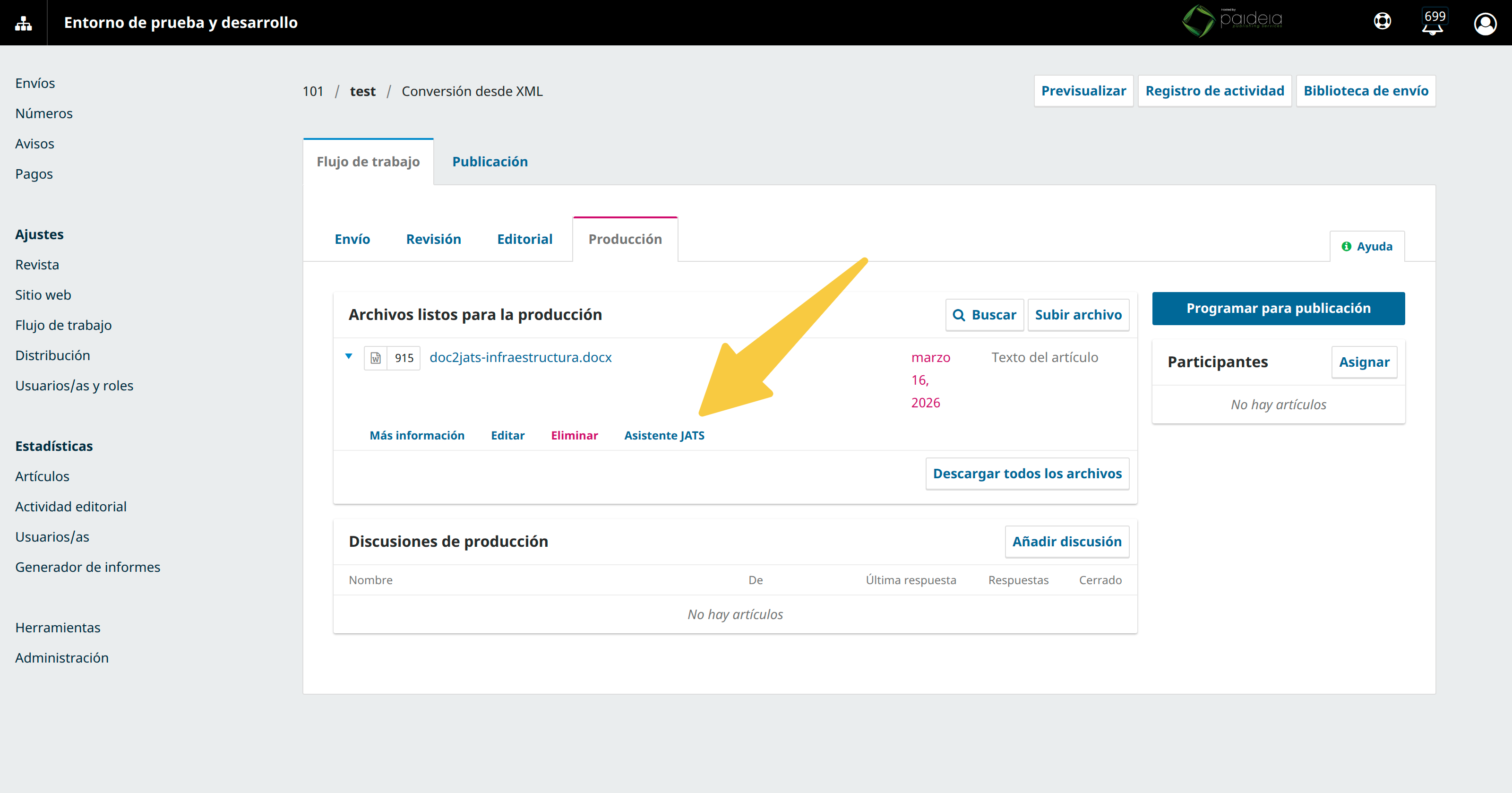
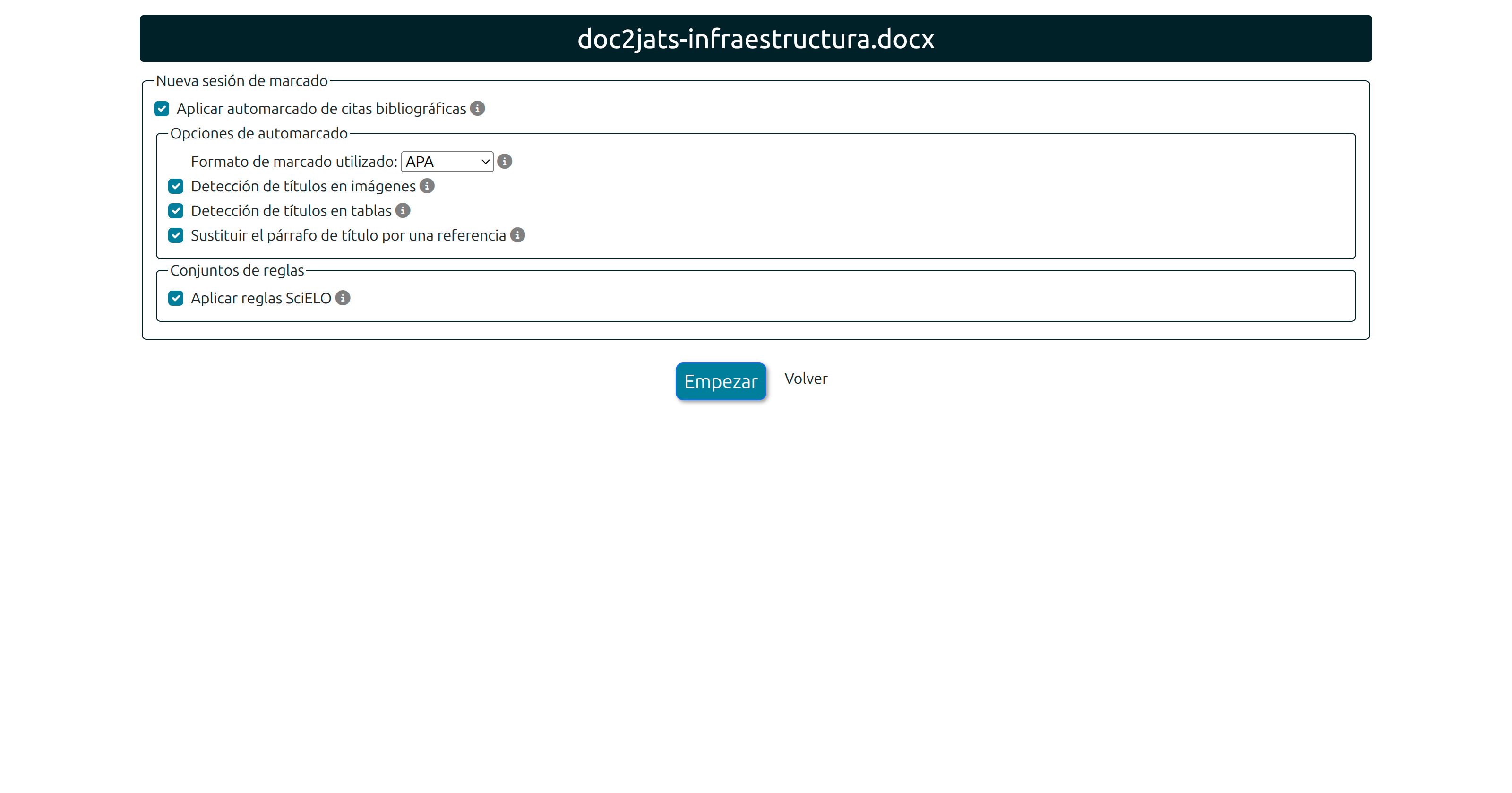
In the production stage, click Asistente JATS on any DOCX file. Select citation format and applicable rules, then click Empezar / Start / Iniciar.
Step 3 — Review in the 4-step wizard
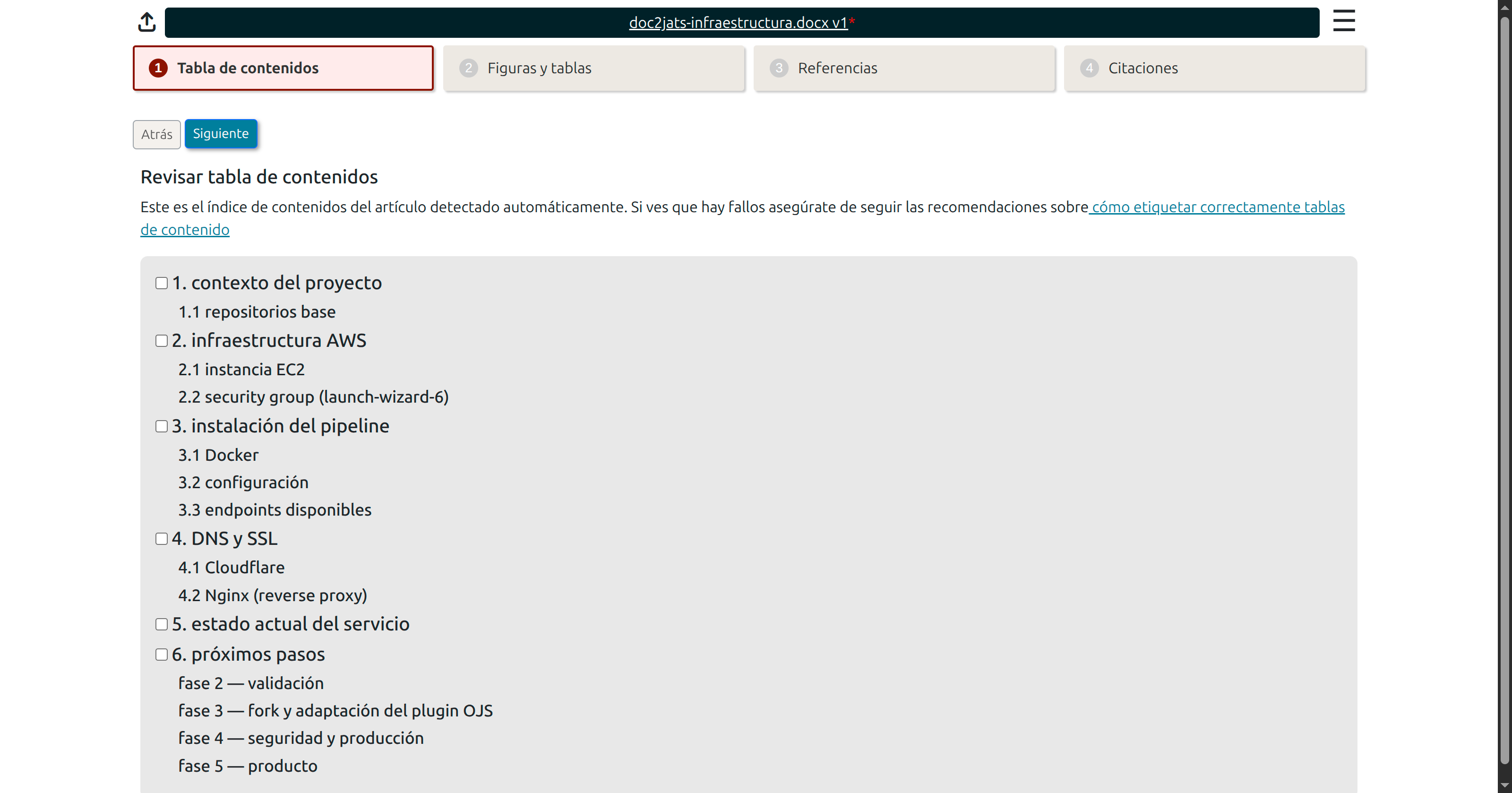
The wizard guides the editor through four review steps: table of contents structure, figures and tables, bibliography, and in-text citations. Each step allows corrections that trigger a live reconversion.
Step 4 — Save and export
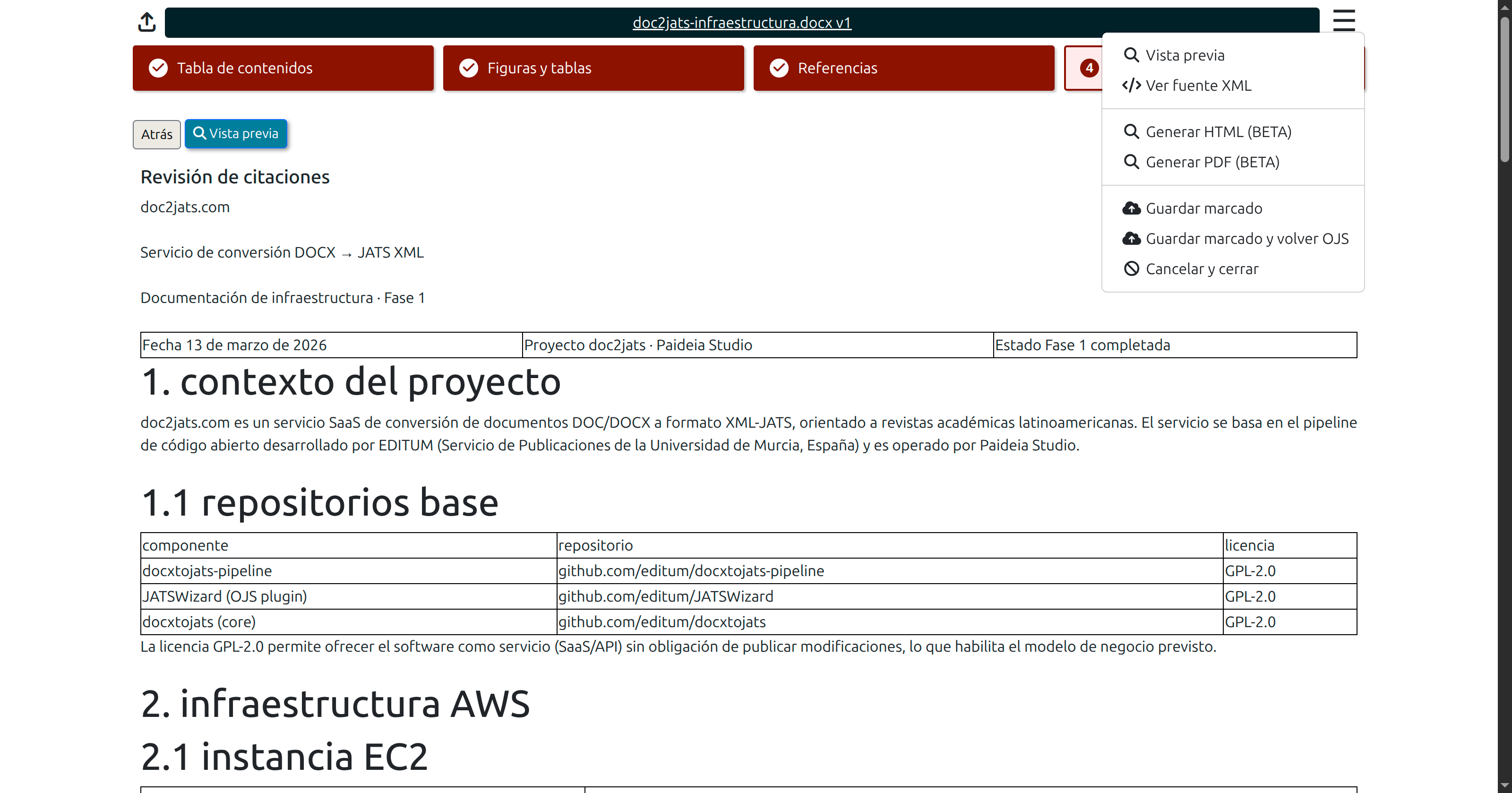
From the wizard's menu, the editor can save the markup as a .mark.zip, generate HTML or PDF via jatsPublisher, or cancel. Once saved, export and galley creation buttons appear on the file row in the production stage.
Step 5 — Export from the production stage
| Button | Action |
|---|---|
| Exportar a JATS | Extracts article.xml from the ZIP and saves it as a .mark.xml file. A Crear galerada button appears on the XML row. |
| Exportar a HTML | Calls /doc/jatsPublisher on-the-fly if article.html is not already in the ZIP, and saves the result as a .mark.html file. A Crear galerada button appears on the HTML row. |
Step 6 — Create galley and publish
Click Crear galerada on the XML or HTML file. Set the galley label (e.g. XML or HTML) and language. OJS creates the publication galley, accessible to readers once the article is published from the Publication tab.
HTML & Galley Export
On-the-fly HTML rendering
The Exportar a HTML button checks whether article.html already exists in the ZIP. If absent, the plugin calls /doc/jatsPublisher automatically with the article.xml and images from the ZIP. The resulting HTML is saved as a new file in the production stage.
/doc/tojats calls deduct credits.HTML galley
The HTML produced by /doc/jatsPublisher is a standalone document styled via Saxon XSLT from the JATS XML. It includes all article metadata, body, references, and figures.
XML galley
The JATS XML galley follows the NLM JATS 1.1 / SciELO SPS 1.9 schema and can be used for indexing in SciELO, PubMed Central, and similar databases.
pub-date Behavior
When the article is published
<pub-date date-type="pub" publication-format="electronic">
  <day>15</day>
  <month>06</month>
  <year>2025</year>
</pub-date>
When the article is in production (not yet published)
<pub-date date-type="pub">
  <day>COMPLETAR</day>
  <month>COMPLETAR</month>
  <year>COMPLETAR</year>
</pub-date>OJS 3.4 — Compatibility ojs-3.4 branch
The ojs-3.4 branch is a full port of the plugin to the OJS 3.4 architecture. All core functionality is preserved.
| Area | OJS 3.3 | OJS 3.4 |
|---|---|---|
| File naming | *.inc.php | *.php |
| Class loading | import('lib.pkp...') | use PKP\...\ClassName |
| Hook registration | HookRegistry::register() | Hook::add() |
| Submission file service | Services::get('submissionFile') | Repo::submissionFile() |
| Galley service | Services::get('galley') | Repo::galley() |
| Locale folders | locale/en_US/ | locale/en/, locale/pt_BR/ |
getActions() is only called when the logged-in user has the Journal Manager role in that journal. The Settings button will not appear for site administrators viewing the plugin outside the journal context.Preparing the Submission
For best conversion results, the DOCX file should follow these conventions before uploading to OJS:
- Use Word heading styles (Heading 1, Heading 2…) for all section titles — never simulate headings with bold or font size changes.
- Include the reference list in the OJS submission metadata ("References" field) or at the end of the document.
- Insert figures and tables with captions directly below the element using a consistent format (e.g. "Figure 1. Description").
- Use a reference manager such as Zotero or Mendeley to insert citations — this dramatically improves AutoMark precision.
- Images embedded in the DOCX are extracted automatically — no need to upload them separately.
Phase 1 — Table of Contents
The first phase ensures the source document has a correctly structured table of contents generated from Word heading styles (Heading 1, Heading 2, etc.). This is fundamental for the conversion engine to identify the content hierarchy and translate it to JATS <sec> elements.
Visual aspects of the document — font colors, decorative bold, automatic numbering — have no relevance for JATS generation and should not be a concern. What matters is that each section is correctly tagged with the appropriate heading style.
Once the wizard processes the document, it shows a preview of the detected table of contents. If any section is missing or incorrectly labeled, correct the heading style in the source DOCX before proceeding.
The wizard also allows manually removing sections that should not be part of the JATS body — such as the article title, authors, abstract, and reference list. These elements are managed independently by OJS and will be inserted into the XML automatically from the submission metadata.
<ref-list> from the AutoMark results.Phase 2 — Figures & Tables
Before running the wizard, verify that all images and charts in the document are actual embedded images — not Word shapes, SmartArt, or drawing objects. The conversion engine only understands flat image formats (JPEG, PNG, TIFF).
Converting shapes to images
To convert a Word shape or SmartArt to an image:
- Select the shape or SmartArt. If it is composed of multiple elements, select all of them from a corner.
- Cut to clipboard: right-click → Cut, or Ctrl + X.
- In the Home tab, open the Paste Special dropdown and select JPEG or PNG format.
After converting all graphics, run the document through the wizard again to confirm all images are correctly detected.
Adding figure titles
Authors typically add a paragraph below the image as a caption, but without using Word's built-in title tool — which is what the converter uses for detection. To mark titles correctly:
- Ensure the author's caption paragraph is on a single line with no line breaks.
- Select the entire paragraph and cut it (right-click → Cut or Ctrl + X).
- Select the image, right-click and choose Insert Caption, or use the References tab → Insert Caption.
- Paste the author's original text into the caption field.
Automark Options
The automark engine analyzes the DOCX body and automatically detects and links in-text citations to bibliography entries. These options can be tuned or disabled depending on the document's characteristics.
Citation format
For precise citation detection, the automark engine needs to know which citation format was used. Supported styles:
| Value | Standard | Common use |
|---|---|---|
| apa | APA 7th edition | Social sciences, psychology, education |
| ama | AMA 11th edition | Medicine, health sciences |
| vancouver | Vancouver / ICMJE | Biomedical journals, SciELO |
Detect figure titles
When enabled, the engine searches for figure titles associated with images in the document. For best results, use Word's built-in caption tool (References → Insert Caption). The engine can also detect titles based on common text patterns such as "Figure N", "Fig. N", "Figura N", etc.
Detect table titles
Analogous to figure title detection. The engine searches content immediately before or after each table for common expressions such as "Table", "Tabla", "Tab.", etc. Using native Word heading styles is recommended for precise detection.
Replace title paragraph with a reference
In some publishing workflows, figures and tables are displayed in a side panel separate from the main text. When this option is enabled, the plugin inserts a cross-reference marker at the original position of the figure or table, preserving the reading context in environments that externalize graphic resources. This is particularly useful for HTML and Lens-based article viewers.
Apply SciELO rules
The SciELO ecosystem requires additional constraints on the JATS XML that, while not contradicting the standard, specialize it. When enabled, the conversion applies SciELO Publishing Schema (SPS 1.9) directives, including specific-use="sps-1.9" attributes and <mixed-citation> elements, ensuring compatibility with SciELO's validation and publication system.
Bibliography Formats
.json — CSL JSON (preferred)
Structured Citation Style Language. Each item may include a note field with the formatted citation string, used for SciELO <mixed-citation> elements.
[{
  "id": "ref1", "type": "article-journal",
  "title": "Example article",
  "author": [{"family": "Smith", "given": "John"}],
  "issued": {"date-parts": [[2023]]},
  "DOI": "10.1000/example",
  "note": "Smith J. Example. J Ex. 2023;10:1-15."
}]
.ref — One reference per line
Each line is one complete formatted reference. AnyStyle parses and structures them. More reliable than free-form text.
Smith J, Jones A. Example article. J Examples. 2023;10(2):1-15.
García M. Otro ejemplo. Rev Med. 2022;5:44-50.
.txt — Unstructured plain text
Raw reference list. AnyStyle attempts segmentation. Less reliable — use .ref when possible.
Citation Styles
| Value | Standard | Common use |
|---|---|---|
| apa | APA 7th | Social sciences, psychology, education |
| ama | AMA 11th | Medicine, health sciences |
| vancouver | Vancouver / ICMJE | Biomedical journals, SciELO |
Output ZIP Structure
/doc/tojats
output.zip
├── article.xml        # JATS XML 1.1 / SPS 1.9
├── article.json       # CSL bibliography
└── media/
    ├── image1.png
    └── image2.jpg
/doc/jatsPublisher
publication.zip
├── article.html       # standalone HTML
├── article.pdf        # print-ready PDF
└── style.css
OJS Plugin — mark.zip (wizard output)
mark.zip
├── article.xml        # JATS XML with all wizard markup applied
├── article.json       # CSL bibliography state
├── article.html       # present only if HTML was generated in the wizard
├── image1.jpeg
└── src/
    ├── article.docx   # original source document
    ├── front.xml      # generated front metadata
    ├── citations.ref
    └── csl.json
Roadmap
SciELO export package planned
Automated generation of a SciELO-compatible submission package at the issue level. When all articles assigned to an issue have a validated JATS XML galley, the journal editor will be able to trigger a one-click export that produces a ZIP following the SciELO Publishing Schema nomenclature conventions.
0042-9686-rpsp-55-e001.zip
├── 0042-9686-rpsp-55-e001.xml
├── 0042-9686-rpsp-55-e001-fig1.jpg
└── 0042-9686-rpsp-55-e001-fig2.png| Feature | Detail |
|---|---|
| Scope | Issue-level export from the OJS editorial interface |
| Nomenclature | SPS-compatible — {issn}-{journal-abbrev}-{vol}-{issue}-{pid} |
| Image renaming | Automatic, using figure IDs from the JATS XML |
| Validation | Pre-export Schematron check — articles with errors flagged before download |
| Target databases | SciELO, LILACS |
{ "success": false, "errors": { ... } } when Accept: application/json is present.